Documentation
No Category Base (WPML) Plugin — Complete Setup & Feature Guide
1 Introduction
What is No Category Base?
Managing a WordPress site is exciting, especially when you start organizing your content with categories. But as your site grows, you may notice something frustrating — your URLs don't look as clean as you'd like.
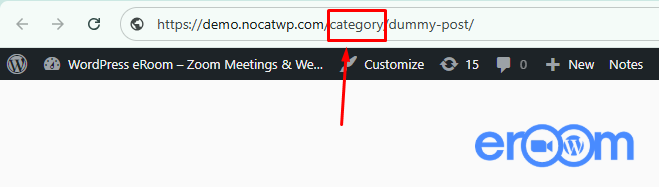
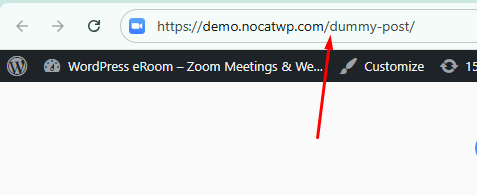
By default, WordPress adds a /category/ prefix to all category links. So instead of clean URLs, you get:
yoursite.com/category/news
yoursite.com/news
At first, this may not seem like a big issue. But over time, it can affect:
- The overall cleanliness of your URLs
- Your SEO structure
- And the user experience
Why is this a problem?
Without the right solution:
- You're stuck with unnecessary
/category/in every URL - Customizing permalinks can require technical work or risky changes
- You may end up editing core files or using complex configurations
- Existing links can break if not handled properly
That's where No Category Base comes in.
No Category Base is a lightweight WordPress plugin that removes the /category/ prefix from your URLs instantly — without requiring any manual configuration. Once activated, the plugin automatically transforms your category links into clean, SEO-friendly URLs.
What does it do?
- Removes
/category/from all category URLs - Keeps your existing links working with proper redirects
- Requires no setup or coding
- Works seamlessly with your current WordPress setup
Why use No Category Base?
- Create clean and professional URLs
- Improve SEO and readability
- Avoid complex permalink configurations
- Save time with a plug-and-play solution
- Maintain compatibility with existing links
How it fits into your website
- WordPress manages your content
- Categories organize your posts
- This plugin ensures your URLs stay clean and optimized
Together, they create a smoother, more professional browsing experience for your visitors.
BEFORE:
AFTER:
2 Installation & Setup
Setting up the No Category Base plugin is simple and takes only a few steps.
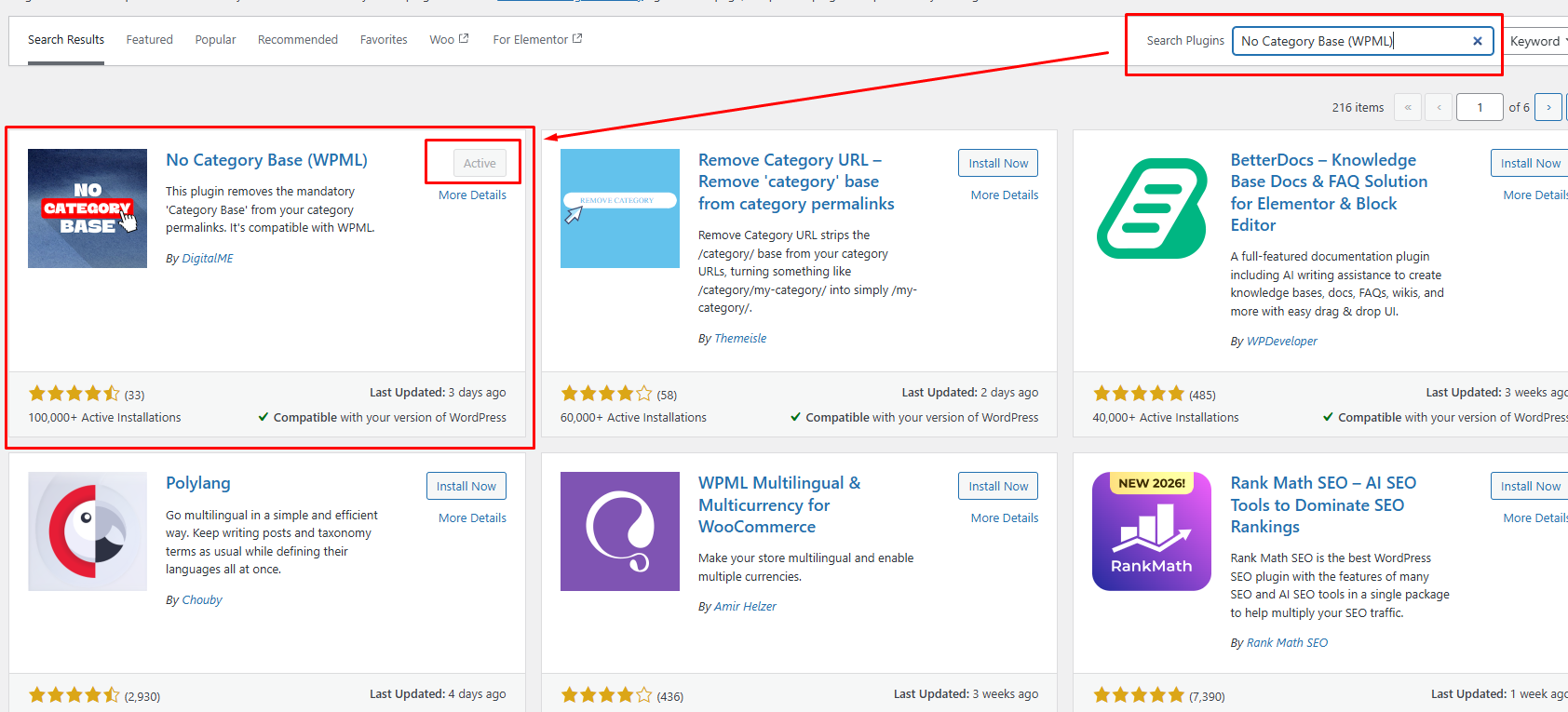
Install the Plugin
- Go to your WordPress Dashboard
- Navigate to Plugins → Add New
- Search for "No Category Base"
- Click Install Now
- Click Activate
Access Plugin Settings
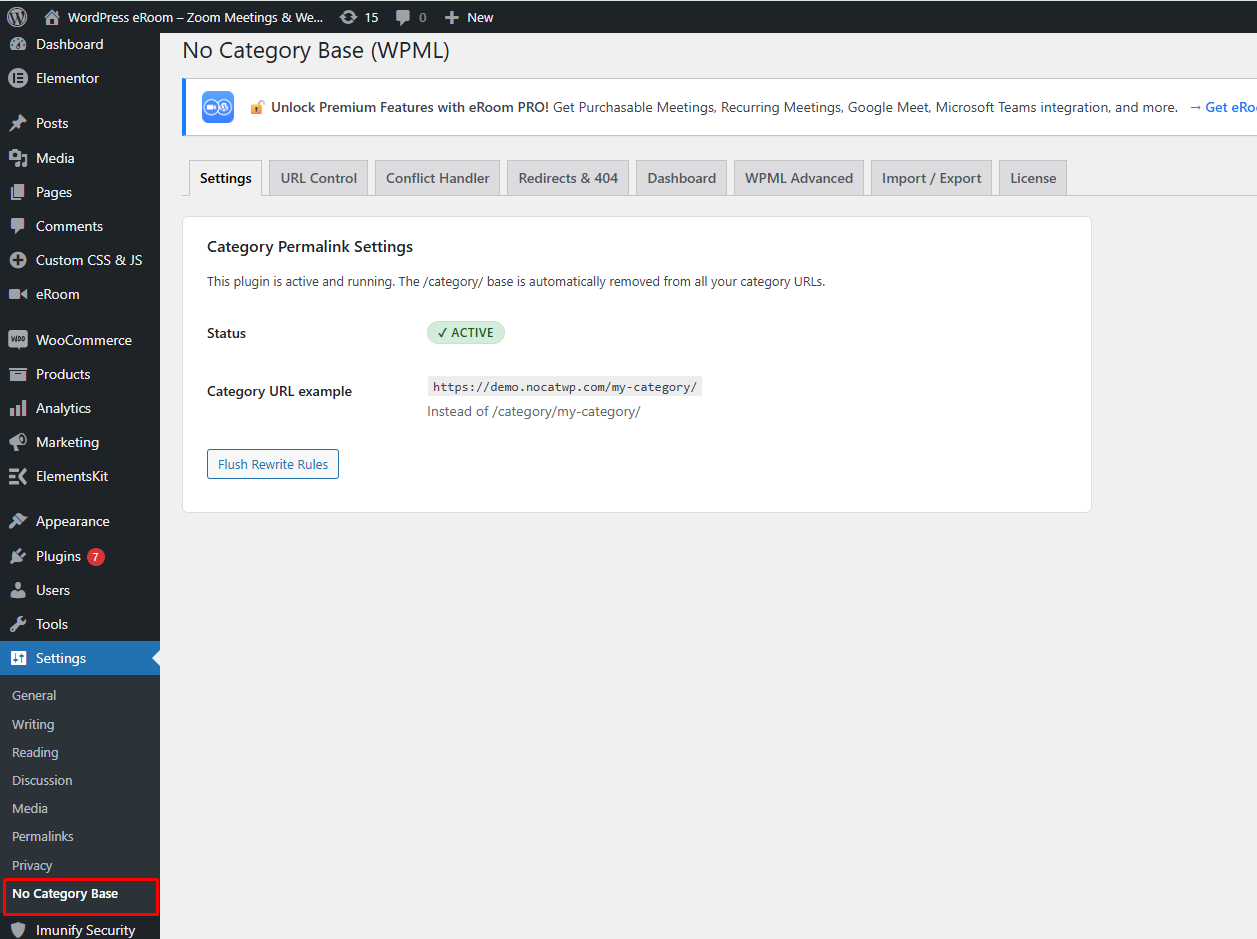
After activation, the plugin adds a settings page inside WordPress:
- Go to Settings → No Category Base
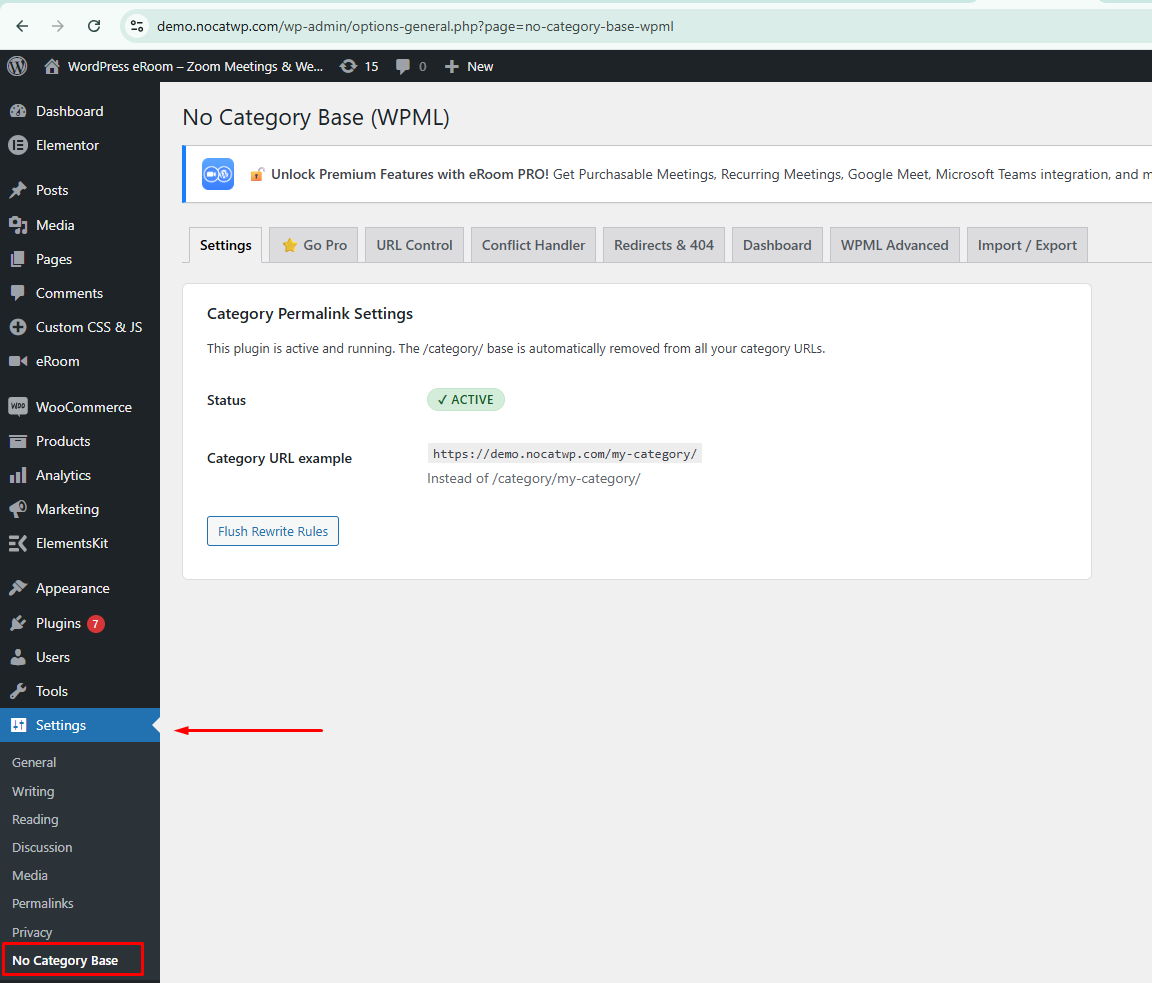
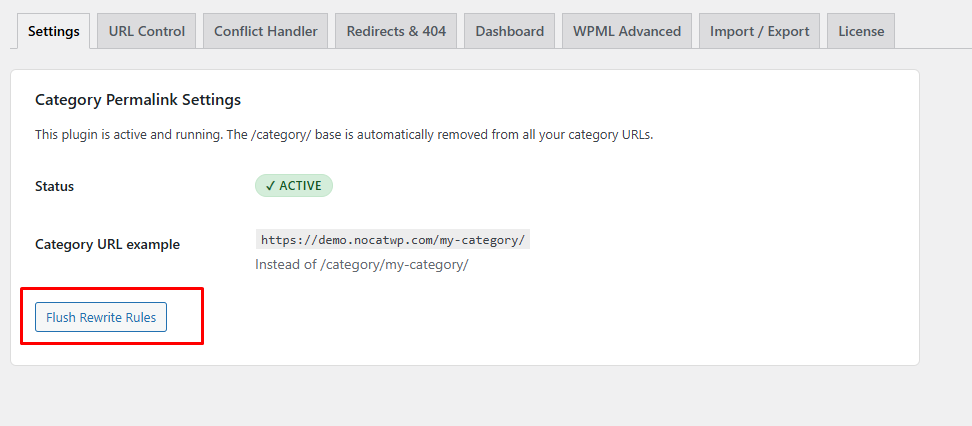
Category Permalink Settings
Once the plugin is active, the /category/ base is automatically removed from all category URLs.
- Status: Active
- Category URL Example: Displays the updated clean URL structure
- Old URLs with
/category/are replaced with simplified versions
Apply Changes
Click Flush Rewrite Rules to ensure all URL changes are properly applied.
Additional Configuration Optional
You can switch to the URL Control tab to manage base removal for other taxonomies such as:
- Product Categories
- Product Tags
- Product Shipping Classes
Verify the Changes
- Visit any category page on your website
- Check the URL in your browser
The /category/ base will no longer appear in the URL.
3 Premium Features Overview
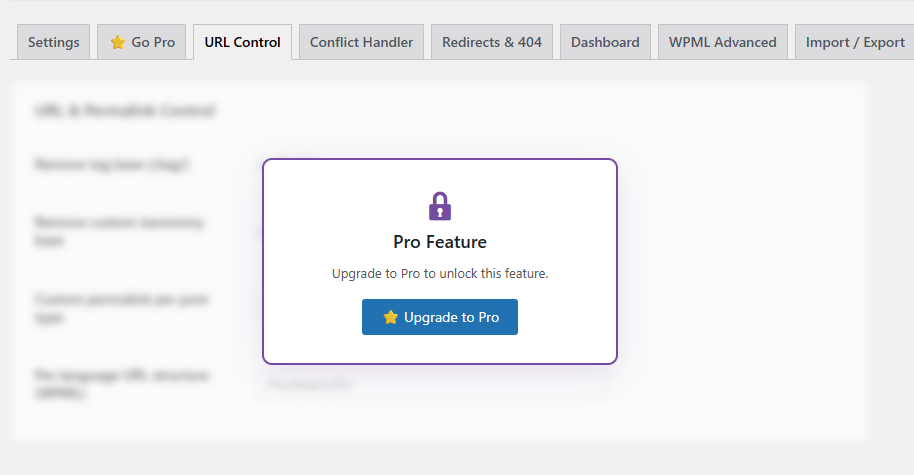
The No Category Base PRO version extends the core functionality by providing advanced controls for managing URL structures across different taxonomies and multilingual setups.
The premium version introduces additional capabilities directly within the plugin interface, allowing more granular control over how base slugs are handled.
Redirect Manager & 404 Tracker
Track all redirects with hit counts, monitor 404 errors, and get automatic suggestions for fixing broken URLs.
Preview Mode & Rollback
Preview URL structure changes before applying them. Instantly roll back to previous settings to avoid broken links.
Advanced URL Control
Remove base slugs from custom taxonomies. Apply changes selectively instead of globally for fine-grained control.
Conflict Handling
Detect conflicting slugs automatically, prevent duplicate or broken URLs, and maintain a stable permalink structure.
Import / Export Settings
Export plugin settings, import configurations on another site, and save time across multiple installations.
Dashboard Overview
Monitor applied rules, review plugin status and configurations, and keep track of URL structure updates.
4 Installing & Activating the PRO Version
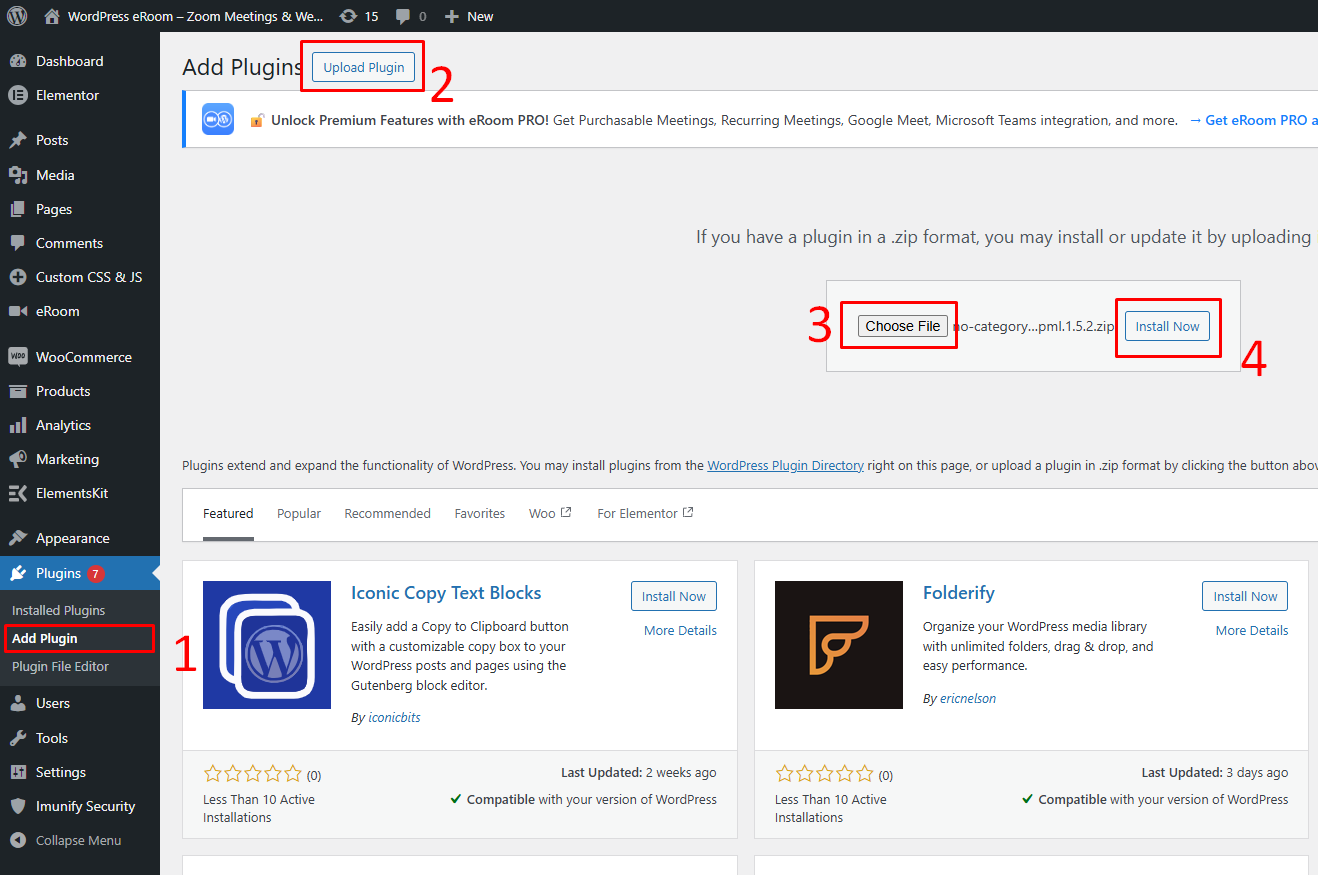
The PRO version is installed manually by uploading the plugin file to your WordPress website.
Upload the PRO Plugin
- Go to your WordPress Dashboard
- Navigate to Plugins → Add New
- Click on Upload Plugin
- Click Choose File and select the PRO plugin
.zipfile - Click Install Now
Activate the PRO Plugin
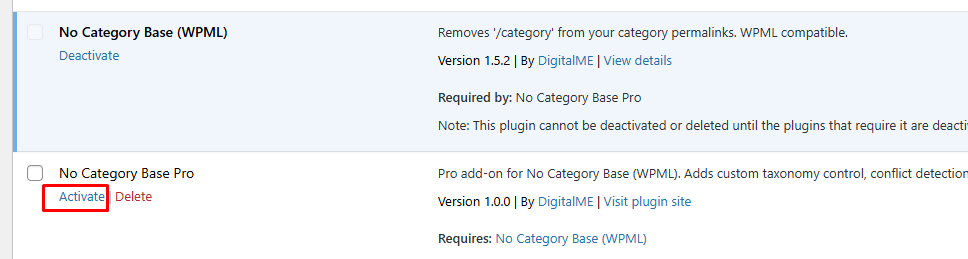
Once the plugin is installed:
- Click Activate Plugin
- The PRO version will now be active on your website
Access PRO Settings
After activation:
- Go to Settings → No Category Base
- You will see additional tabs such as:
- URL Control
- Conflict Handler
- Redirects & 404
- Import / Export
- License
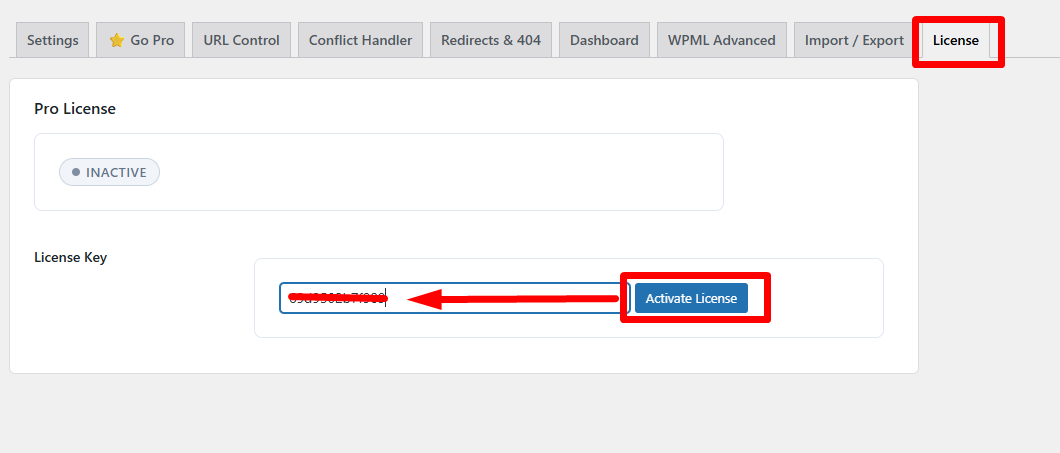
Activate License
To unlock all premium features:
- Open the License tab
- Enter your license key
- Click Activate License
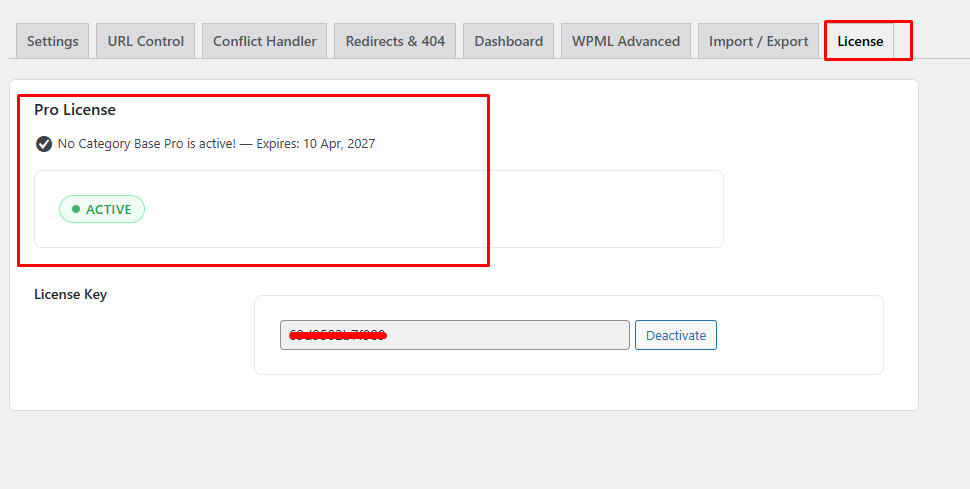
Verify Activation
Once the license is activated:
- All premium features will be unlocked
- Additional tools and options will be available in the plugin dashboard
5 Custom Taxonomy Base Removal
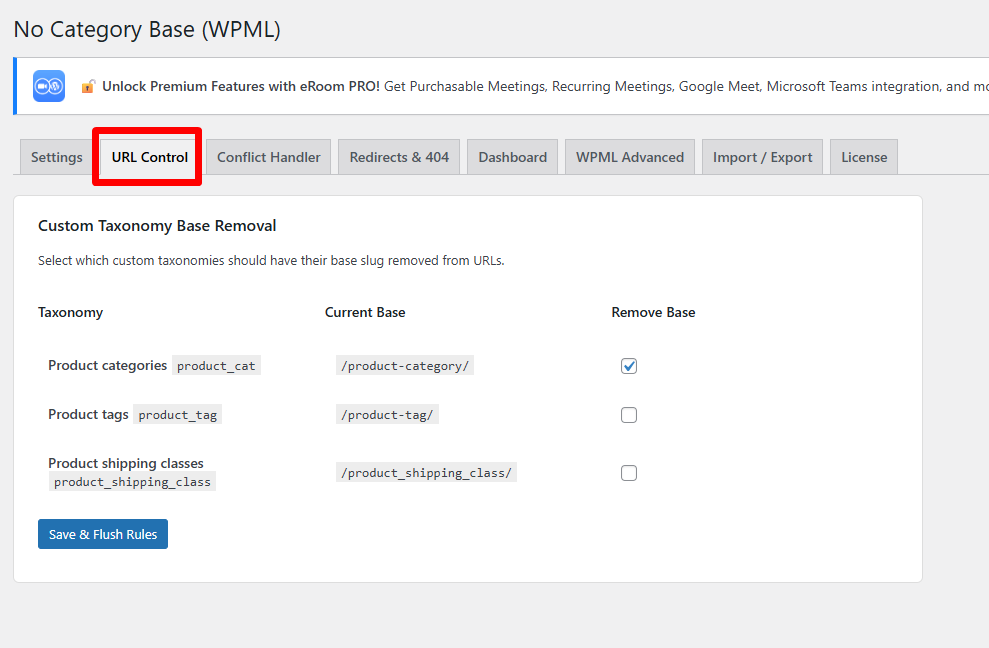
The URL Control feature allows you to remove base slugs from custom taxonomies directly from the plugin interface.
Available Taxonomies
The plugin displays a list of available taxonomies along with their current base structure.
- Product Categories (
/product-category/) - Product Tags (
/product-tag/) - Product Shipping Classes (
/product_shipping_class/)
Each taxonomy can be managed individually.
Remove Base Slugs
You can choose which taxonomy base to remove by enabling the corresponding option.
- Enable Remove Base for the desired taxonomy
- Leave unchecked for taxonomies you want to keep unchanged
Apply Changes
After selecting your preferences:
- Click Save & Flush Rules
This will update the URL structure based on your selections.
Result
- Selected base slugs will be removed from URLs
- URLs become shorter and more readable
- Non-selected taxonomies remain unchanged
6 Conflict Handler
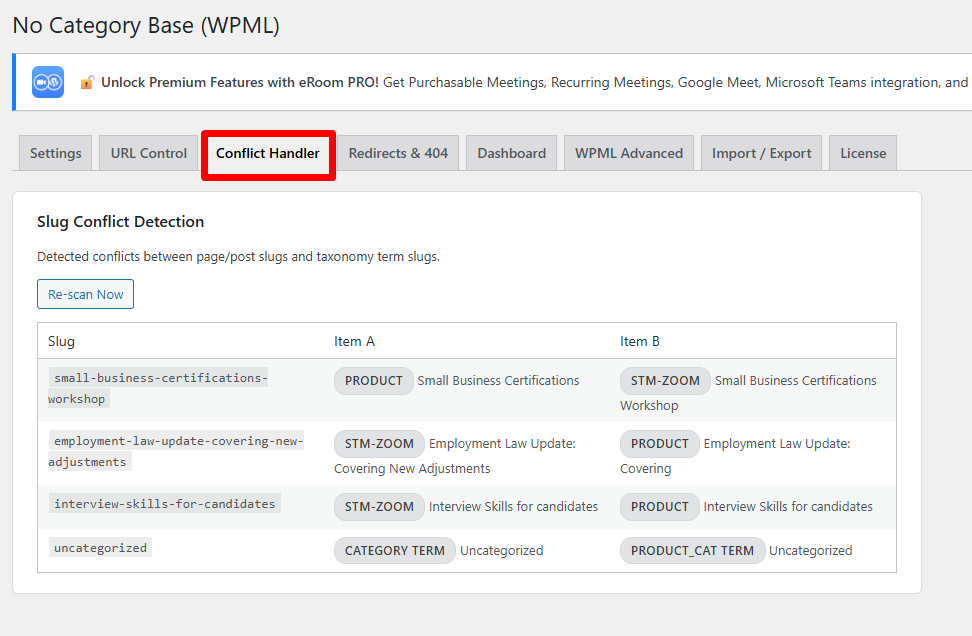
The Conflict Handler helps identify and manage URL conflicts that may occur when removing base slugs from categories or taxonomies.
Detect Conflicts
When base slugs are removed, some URLs may overlap with existing pages, posts, or other taxonomies.
- The plugin scans for duplicate or conflicting slugs
- Displays items that may cause URL conflicts
Conflict Overview
The interface shows conflicting entries with their associated types.
- Category Terms
- Product Category Terms
- Other taxonomy terms
Each item is clearly labeled to help identify the source of the conflict.
Resolve Conflicts
You can review and resolve conflicts directly from the panel.
- Identify duplicate slugs
- Adjust or rename conflicting items
- Ensure each URL remains unique
Result
- Prevents duplicate URLs
- Maintains a clean permalink structure
- Ensures proper navigation across the website
7 Redirects & 404 Log
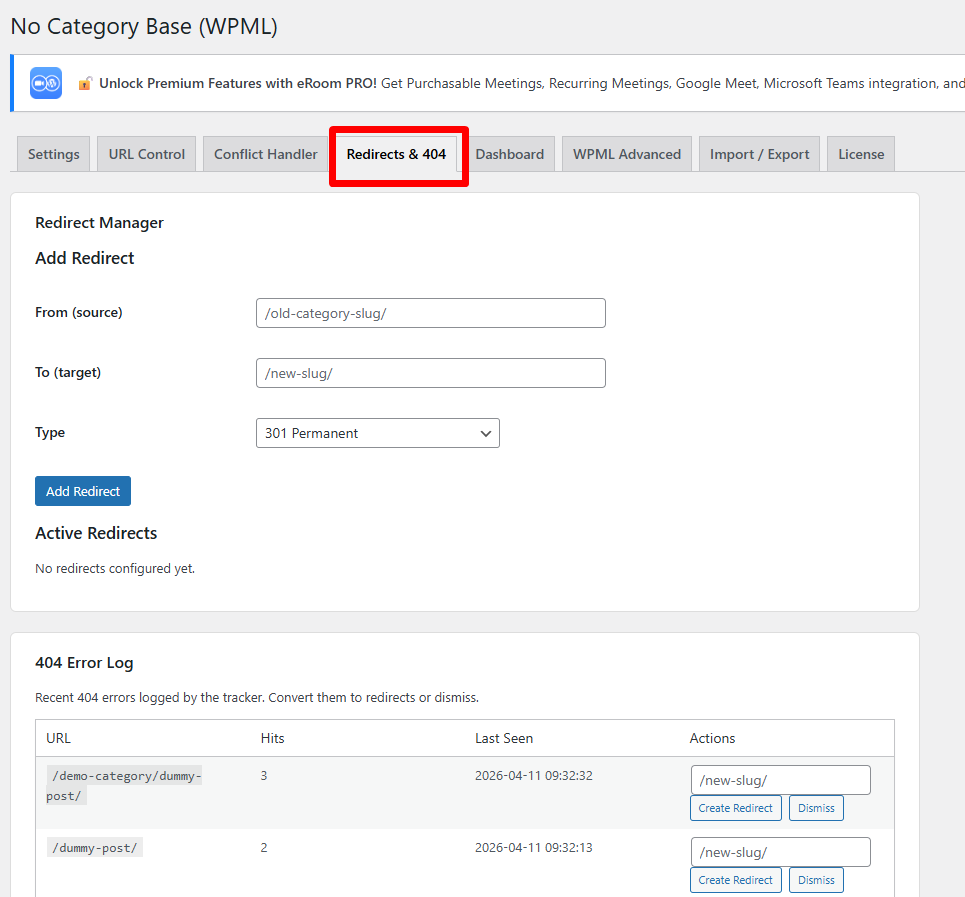
The Redirects & 404 Log section allows you to monitor broken links and manage redirects directly from the plugin interface.
404 Error Log
The plugin automatically tracks pages that return 404 errors.
- View recently accessed broken URLs
- Identify missing or incorrect links
- Monitor user requests to non-existing pages
Manage Redirects
You can convert 404 errors into redirects directly.
- Create redirects for broken URLs
- Map old URLs to new working pages
- Dismiss entries that are not required
Real-Time Tracking
The log updates automatically as users encounter broken links.
- Track activity without manual setup
- Keep your site structure updated
Result
- Reduce broken links across the website
- Improve user navigation
- Maintain SEO performance by fixing missing pages
8 Dashboard Overview
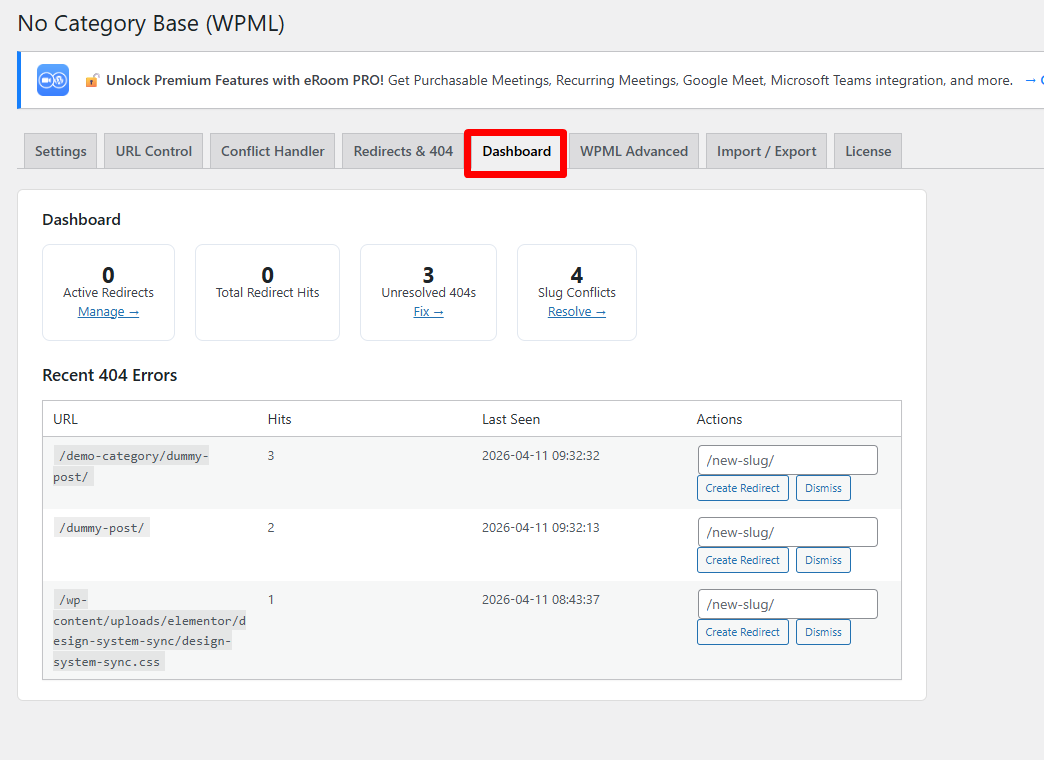
The Dashboard provides a centralized overview of all URL-related activities within the plugin.
Key Metrics
The dashboard displays important statistics at a glance:
| Metric | Description |
|---|---|
| Active Redirects | Total number of active redirects currently applied |
| Total Redirect Hits | Number of times redirects have been triggered |
| Unresolved 404s | Detected 404 errors that still require attention |
| Slug Conflicts | Total number of detected URL conflicts |
Quick Actions
Each metric includes quick access to manage or resolve issues.
- Manage active redirects
- Fix unresolved 404 errors
- Resolve detected slug conflicts
Recent 404 Errors
The dashboard lists recently detected 404 errors. You can view broken URLs, check number of hits, and see when the error was last detected. You can take immediate action:
- Create a redirect
- Dismiss the entry
Result
- Centralized monitoring of URL structure
- Faster issue detection and resolution
- Improved site performance and navigation
9 WPML Advanced
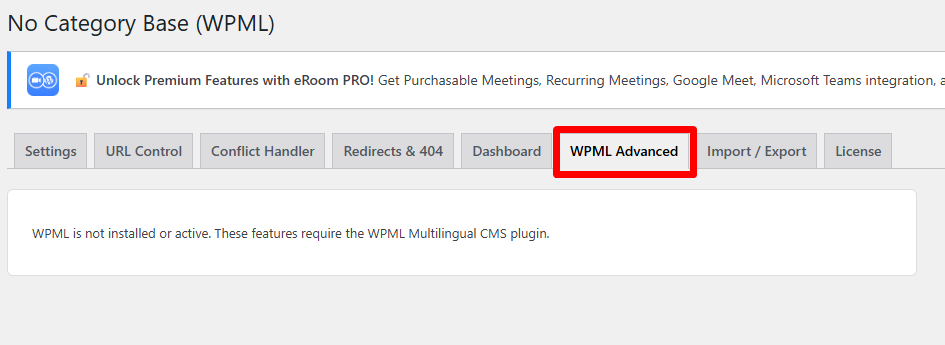
The WPML Advanced section provides additional URL management options for multilingual websites.
WPML Requirement
These features are only available when the WPML Multilingual CMS plugin is installed and active.
- WPML must be installed on your website
- The plugin will automatically detect WPML integration
Multilingual URL Support
When WPML is active, the plugin allows better control over URL structures across different languages.
- Manage category base removal for each language
- Maintain consistent URL structure across translations
- Ensure clean and readable links in multilingual setups
Result
- Improved URL consistency for multilingual websites
- Better SEO structure across languages
- Seamless integration with WPML
10 Import / Export Settings
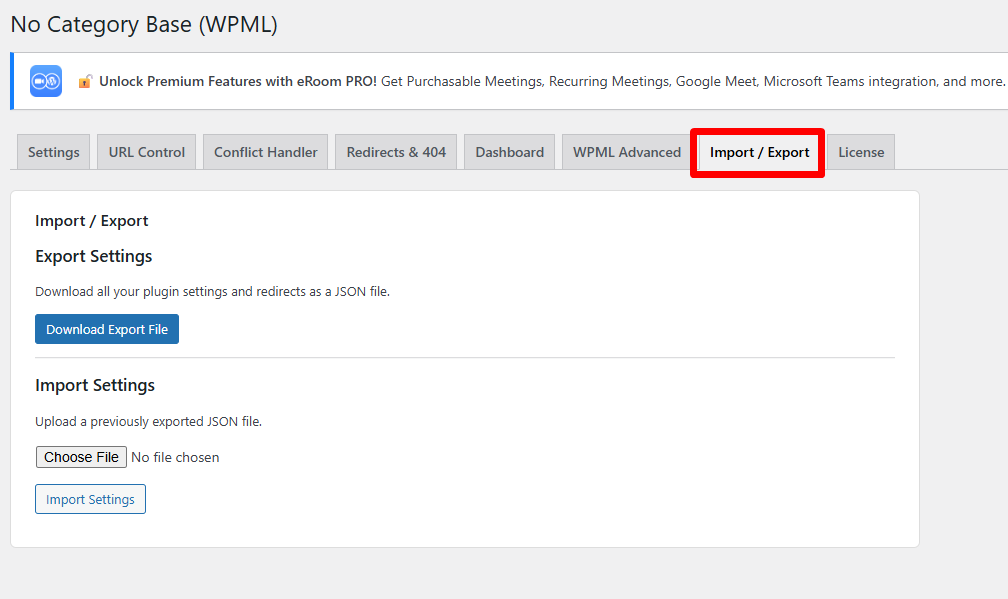
The Import / Export feature allows you to transfer plugin settings and configurations between different websites.
Export Settings
You can download all current plugin configurations as a file.
- Export settings and redirects as a JSON file
- Save a backup of your current configuration
- Use the file for future restoration
Download Export File
- Click Download Export File
- A JSON file containing all settings and redirects will be downloaded
Import Settings
You can upload a previously exported file to restore settings.
- Click Choose File
- Select the JSON file
- Click Import Settings
Result
- Quickly transfer configurations between sites
- Restore settings without manual setup
- Save time when managing multiple websites
11 Compatibility
The No Category Base plugin is designed to work seamlessly with popular WordPress tools and plugins. Whether you are running a page builder, an eCommerce store, or a custom-built site, the plugin integrates cleanly without conflict.
Compatible Plugins
Result
- No conflicts with page builders
- Stable performance across eCommerce setups
- Consistent URL structure across your website